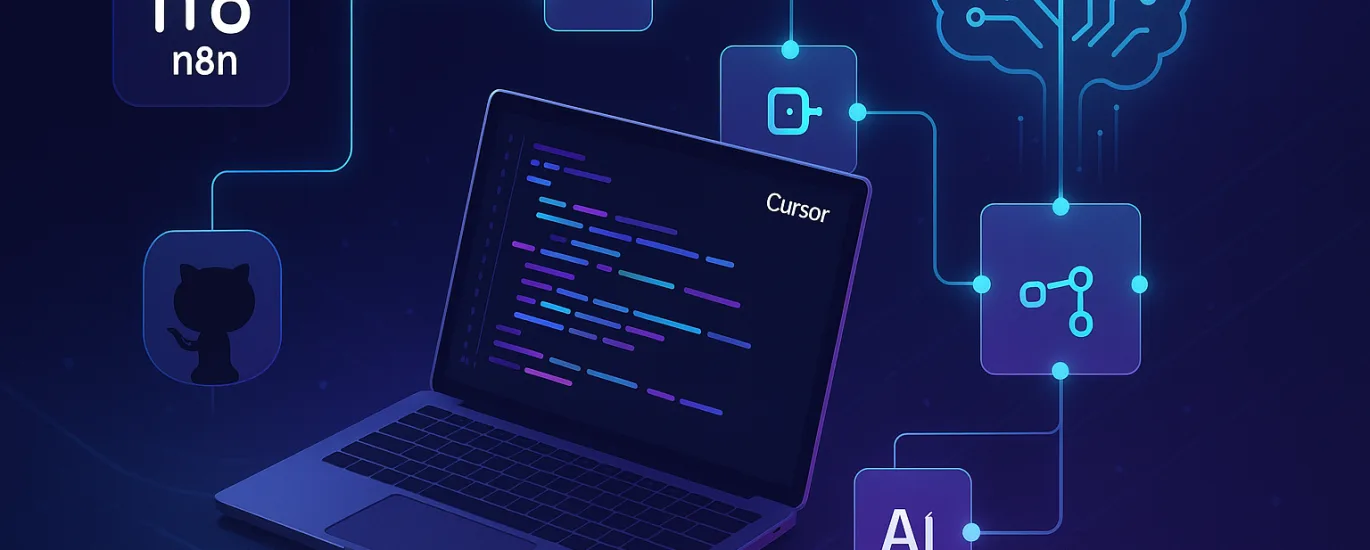
Master the power of Model Context Protocol (MCP) to create automated workflows that help AI agents review, improve, and maintain your code effortlessly
Introduction: Why This Integration Changes Everything
Imagine having an intelligent assistant that not only writes code but automatically checks it against best practices, suggests improvements, maintains consistency across your projects, and integrates seamlessly with GitHub. That’s exactly what you get when you combine N8N’s MCP server with Cursor AI.
In this comprehensive guide, you’ll learn how to set up a powerful workflow that uses AI agents to automate code reviews, maintain code quality, and streamline your development process using N8N MCP, Cursor AI, GitHub, and code analysis tools.
What is MCP and Why Does It Matter?
Model Context Protocol (MCP) is an open standard that enables AI assistants to securely connect with data sources and tools. Think of it as a universal adapter that lets AI agents like Cursor AI communicate with external services like N8N, GitHub, and other platforms.
Key Benefits:
- Unified interface for AI tools to access multiple services
- Secure, standardized communication between AI and external platforms
- Ability to create complex automated workflows that AI can trigger and manage
- Real-time integration with development tools and repositories
Understanding the Core Components
N8N: Your Automation Powerhouse
N8N is a workflow automation platform that connects different services and APIs. The N8N MCP server allows AI assistants to interact with your N8N workflows directly, enabling you to trigger automations, retrieve workflow data, and manage executions through conversational AI.
Cursor AI: Your Intelligent Code Editor
Cursor is an AI-powered code editor built for productivity. It combines the familiarity of VS Code with powerful AI capabilities that understand your codebase, suggest improvements, and help you write better code faster.
GitHub: Version Control and Collaboration Hub
GitHub stores your code, tracks changes, and facilitates collaboration. When integrated with N8N and Cursor, it becomes part of an intelligent system that automatically reviews pull requests, suggests improvements, and maintains code quality.
Part 1: Setting Up N8N MCP Server
Prerequisites
Before you begin, ensure you have:
- Node.js (version 18 or higher) installed
- N8N instance running (self-hosted or cloud)
- N8N API key
- Basic familiarity with terminal/command line
Step 1: Install the N8N MCP Server
Open your terminal and install the N8N MCP server globally:
bash
npm install -g @n8n/mcp-server
Or install it locally in your project:
bash
npm install @n8n/mcp-server
Step 2: Configure Your N8N Connection
Create a configuration file for your MCP server. You’ll need your N8N instance URL and API key:
- Get your N8N API key:
- Log into your N8N instance
- Navigate to Settings → API Keys
- Create a new API key and copy it securely
- Create a configuration file (
.n8n-mcp-config.json):
json
{
  "n8nUrl": "https://your-n8n-instance.com",
  "apiKey": "your-api-key-here",
  "enabledFeatures": [
    "workflows",
    "executions",
    "credentials"
  ]
}
Step 3: Start the MCP Server
Launch the MCP server with your configuration:
bash
n8n-mcp-server --config .n8n-mcp-config.json
The server will start and provide a connection endpoint that Cursor AI can use to communicate with N8N.
Part 2: Connecting Cursor AI to N8N MCP
Step 1: Install Cursor AI
If you haven’t already, download and install Cursor from the official website. Cursor is built on VS Code, so the interface will feel familiar if you’ve used VS Code before.
Step 2: Configure MCP in Cursor
Cursor AI supports MCP integration through its configuration settings. Here’s how to set it up:
- Open Cursor Settings:
- Press
Cmd/Ctrl + ,to open settings - Search for “MCP” or “Model Context Protocol”
- Press
- Add the N8N MCP Server:
- Navigate to the MCP servers section
- Add a new server configuration:
json
{
  "mcpServers": {
    "n8n": {
      "command": "node",
      "args": [
        "/path/to/n8n-mcp-server/dist/index.js"
      ],
      "env": {
        "N8N_URL": "https://your-n8n-instance.com",
        "N8N_API_KEY": "your-api-key"
      }
    }
  }
}
- Restart Cursor to apply the changes.
Step 3: Test the Connection
Open Cursor’s AI chat and try a simple command:
List my N8N workflows
If configured correctly, Cursor should connect to your N8N instance through MCP and display your workflows.
Part 3: Creating Your First Automation Workflow in N8N
Now let’s create powerful N8N workflows that Cursor AI can trigger to help with code review and maintenance.
Workflow 1: Automated Code Review with AI
This workflow analyzes code changes and provides intelligent feedback:
Workflow Structure:
- Webhook Trigger: Receives code from Cursor AI
- GitHub Node: Fetches the latest code from your repository
- Code Analysis Node: Uses AI to analyze code quality, security issues, and best practices
- HTTP Request Node: Sends results back to Cursor or posts as GitHub comment
- Notification Node: Alerts you via Slack/Email if critical issues are found
Step-by-Step Setup:
- In N8N, create a new workflow
- Add a Webhook node as the trigger:
- Set HTTP Method to POST
- Copy the webhook URL
- Add a GitHub node:
- Operation: Get File Content
- Configure with your GitHub credentials
- Set repository and file path from webhook data
- Add an AI Agent node (or HTTP request to Claude/GPT):
- Configure to analyze code for:
- Security vulnerabilities
- Performance issues
- Code style consistency
- Best practice violations
- Potential bugs
- Configure to analyze code for:
- Add a response node to send results back
- Activate your workflow and copy the webhook URL
Workflow 2: Automated Code Documentation Generator
This workflow generates comprehensive documentation for your code:
Workflow Structure:
- Webhook Trigger
- GitHub Node: Fetch code files
- AI Documentation Node: Generate documentation
- GitHub Node: Create/update README or docs
- Response Node: Confirm completion
Workflow 3: GitHub PR Review Automation
Automatically review pull requests when they’re created:
Workflow Structure:
- GitHub Trigger: Monitors for new pull requests
- Get PR Changes: Fetches the diff
- AI Code Review: Analyzes changes
- Post Comment: Adds review comments to PR
- Update Status: Sets PR status based on findings
Part 4: Integrating GitHub for Seamless Version Control
Setting Up GitHub Integration
- Create a GitHub Personal Access Token:
- Go to GitHub Settings → Developer Settings → Personal Access Tokens
- Generate new token with
repo,workflow, andwrite:packagesscopes - Save the token securely
- Add GitHub Credentials to N8N:
- In N8N, go to Credentials
- Add new GitHub credentials
- Enter your access token
- Configure GitHub in Your Workflows:
- Use GitHub nodes in your N8N workflows
- Set up triggers for push events, PR creation, and issue updates
Creating a Code Quality Gate
Build a workflow that prevents merging code that doesn’t meet quality standards:
GitHub PR Created → N8N Triggered → Code Analysis →
Results Evaluation → Pass/Fail Status → GitHub Status Check
This ensures only quality code reaches your main branch.
Part 5: Using Cursor AI with Your Automated Workflows
Triggering Workflows from Cursor
Now that everything is connected, you can use natural language in Cursor to trigger your N8N workflows:
Example Commands:
Review my current file for security issues
Generate documentation for this module
Check this code against our style guide
Run automated tests on this function
Advanced Usage: AI Agents as Code Maintainers
Configure Cursor to work as an intelligent code maintainer:
- Set Up Context Rules: In Cursor, create a
.cursorrulesfile in your project root:
When reviewing code:
- Trigger the N8N code review workflow
- Wait for analysis results
- Apply suggested fixes automatically
- Commit changes with descriptive messages

When documenting:
- Trigger documentation workflow
- Generate inline comments
- Update README files
- Create architecture diagrams

Code style:
- Follow our ESLint configuration
- Maintain consistent naming conventions
- Prioritize readability over cleverness
- Enable Agent Mode: Use Cursor’s agent capabilities to let AI make improvements automatically:
- Press
Cmd/Ctrl + Kfor inline editing - Press
Cmd/Ctrl + Lfor chat-based assistance - Enable “Agent” mode for autonomous improvements
- Press
Creating Custom Commands
Set up keyboard shortcuts that trigger specific N8N workflows:
- Open Cursor’s keyboard shortcuts (Cmd/Ctrl + K, Cmd/Ctrl + S)
- Add custom commands that call your N8N workflows
- Bind them to convenient key combinations
Example custom command:
json
{
  "key": "cmd+shift+r",
  "command": "workbench.action.terminal.sendSequence",
  "args": {
    "text": "curl -X POST https://your-n8n.com/webhook/code-review -d @${file}\n"
  }
}
Part 6: Building a Complete Code Review Pipeline
Let’s put it all together with a real-world example: an automated code review pipeline that activates on every commit.
The Complete Workflow
Step 1: Developer writes code in Cursor
- Cursor provides real-time AI suggestions
- Developer completes feature/fix
Step 2: Developer commits changes
- GitHub receives the commit
- GitHub webhook triggers N8N workflow
Step 3: Automated analysis
- N8N fetches changed files
- Runs multiple analysis checks:
- Static code analysis (ESLint, Prettier)
- Security scanning (dependency checks)
- AI-powered code review
- Test coverage validation
- Performance impact assessment
Step 4: Results compilation
- N8N aggregates all findings
- Creates a detailed report
- Assigns severity levels
Step 5: Action and notification
- Posts findings as GitHub PR comment
- Sends Slack notification if critical issues found
- Updates PR status (approved/needs changes)
- Cursor AI can read these comments and suggest fixes
Step 6: AI-assisted fixes
- Developer asks Cursor: “Fix the issues from the code review”
- Cursor reads the N8N analysis results
- Automatically applies fixes
- Developer reviews and commits again
N8N Workflow Configuration
Here’s a sample N8N workflow JSON structure you can import:
json
{
  "name": "Complete Code Review Pipeline",
  "nodes": [
    {
      "type": "n8n-nodes-base.webhook",
      "name": "GitHub Webhook",
      "parameters": {
        "httpMethod": "POST",
        "path": "code-review"
      }
    },
    {
      "type": "n8n-nodes-base.github",
      "name": "Get PR Files",
      "parameters": {
        "operation": "getPullRequest",
        "owner": "={{$json.repository.owner.login}}",
        "repo": "={{$json.repository.name}}",
        "pullRequestNumber": "={{$json.number}}"
      }
    },
    {
      "type": "n8n-nodes-base.httpRequest",
      "name": "AI Code Analysis",
      "parameters": {
        "url": "https://api.anthropic.com/v1/messages",
        "method": "POST",
        "body": {
          "model": "claude-sonnet-4-20250514",
          "max_tokens": 4000,
          "messages": [{
            "role": "user",
            "content": "Analyze this code for security, performance, and best practices: {{$json.patch}}"
          }]
        }
      }
    },
    {
      "type": "n8n-nodes-base.github",
      "name": "Post Review Comment",
      "parameters": {
        "operation": "createComment",
        "body": "={{$json.content[0].text}}"
      }
    }
  ]
}
Part 7: Best Practices and Pro Tips
Security Considerations
- Never commit API keys: Use environment variables and secrets management
- Limit MCP permissions: Only grant necessary access to N8N workflows
- Validate webhook sources: Ensure requests come from legitimate sources
- Regular token rotation: Update API keys and tokens periodically
Performance Optimization
- Cache frequent requests: Store commonly accessed data to reduce API calls
- Batch operations: Process multiple files together when possible
- Set timeouts: Prevent workflows from hanging indefinitely
- Monitor execution times: Identify and optimize slow workflows
Workflow Organization
- Use clear naming conventions: Name workflows descriptively
- Add documentation: Include notes explaining workflow logic
- Version control your workflows: Export and commit workflow JSON to Git
- Create workflow templates: Build reusable patterns for common tasks
Cursor AI Tips
- Use specific prompts: Clear instructions get better results
- Leverage context: Cursor understands your entire codebase
- Review AI suggestions: Always verify before accepting changes
- Customize for your stack: Configure Cursor rules for your tech stack
Part 8: Troubleshooting Common Issues
MCP Connection Failures
Problem: Cursor can’t connect to N8N MCP server
Solutions:
- Verify MCP server is running: Check terminal output
- Confirm API credentials are correct
- Check firewall settings: Ensure ports are open
- Review MCP server logs for error messages
Workflow Execution Errors
Problem: N8N workflows fail to execute
Solutions:
- Check webhook URLs are correct and accessible
- Verify all credentials are still valid
- Review node configurations for missing parameters
- Test workflows manually in N8N interface
GitHub Integration Issues
Problem: GitHub events aren’t triggering workflows
Solutions:
- Verify webhook is configured in GitHub repository settings
- Check webhook secret matches N8N configuration
- Ensure GitHub token has required permissions
- Review webhook delivery history in GitHub
Cursor AI Not Receiving Results
Problem: Workflow completes but Cursor doesn’t show results
Solutions:
- Verify response format matches expected structure
- Check Cursor MCP configuration
- Ensure response node is properly configured in N8N
- Review Cursor logs for error messages
Part 9: Advanced Automation Examples
Automated Refactoring Assistant
Create a workflow that suggests refactoring opportunities:
Scheduled Trigger → Analyze Codebase →
Identify Code Smells → Generate Refactoring Plan →
Create GitHub Issues → Notify Team
Dependency Update Monitor
Automatically check for and test dependency updates:
Daily Trigger → Check for Updates →
Create Test Branch → Run Automated Tests →
Create PR if Tests Pass → Request Review
Code Metrics Dashboard
Build a workflow that tracks code quality over time:
Weekly Trigger → Analyze All Repos →
Calculate Metrics (complexity, coverage, bugs) →
Store in Database → Generate Report →
Send to Team Dashboard
Conclusion: The Future of AI-Assisted Development
By combining N8N MCP, Cursor AI, GitHub, and intelligent automation workflows, you’ve created a development environment that:
- Catches issues early: Before they reach production
- Maintains consistency: Across all your projects
- Saves time: Automates repetitive tasks
- Improves quality: Through continuous automated review
- Enhances learning: AI explanations help you become a better developer
This integration represents the future of software development—where AI agents work alongside developers as intelligent collaborators, handling routine tasks and providing expert guidance when needed.
Next Steps
- Start small: Begin with a simple code review workflow
- Iterate and improve: Add complexity as you become comfortable
- Share with your team: Collaborate on workflow improvements
- Monitor and optimize: Track which automations provide the most value
- Stay updated: Both N8N and Cursor are rapidly evolving
Additional Resources
- N8N Documentation: https://docs.n8n.io
- Cursor AI Documentation: https://cursor.sh/docs
- MCP Protocol Specification: https://modelcontextprotocol.io
- GitHub API Documentation: https://docs.github.com/en/rest
Have you implemented this setup? Share your experience and custom workflows in the comments below!
Tags: N8N, Cursor AI, MCP, GitHub Integration, Code Automation, AI Development Tools, Workflow Automation, Code Review, DevOps